Select Repository
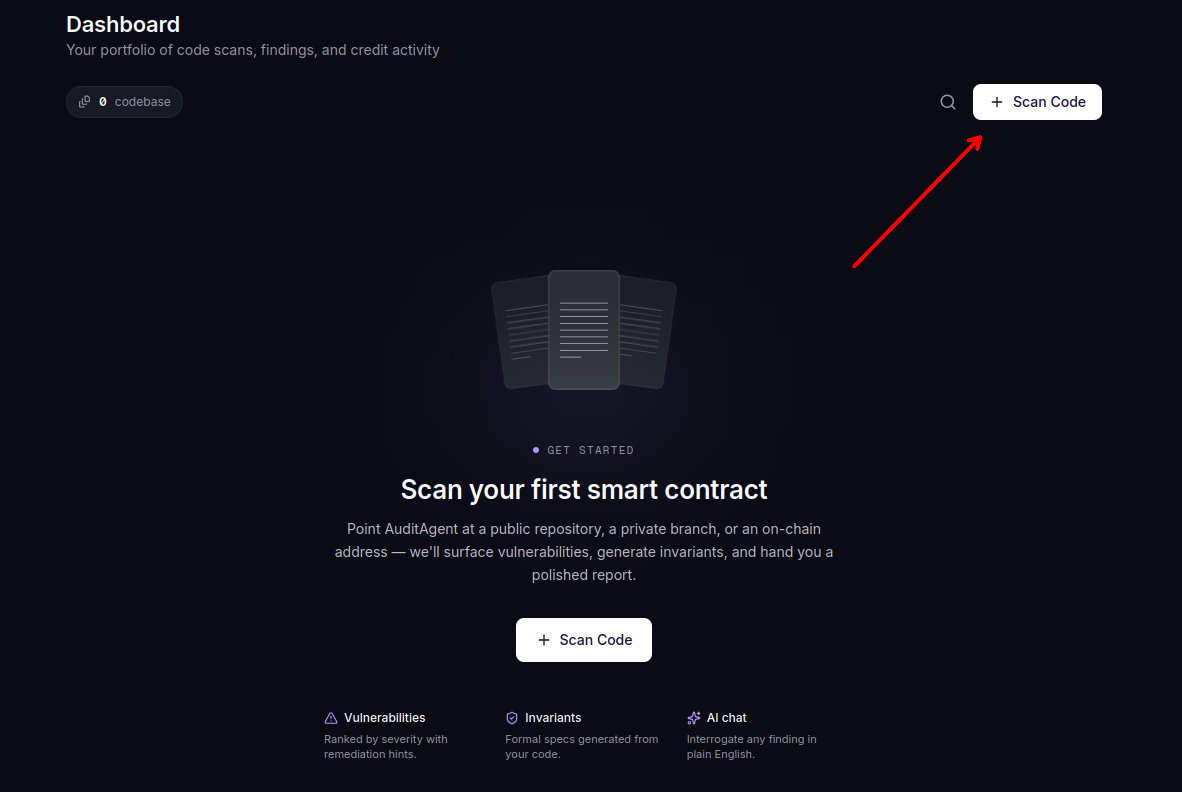
The first step in the scan flow. Tell AuditAgent where to pull the code from. Click Scan Code in the top right of the dashboard, and you land on the repository selection page.
Pick a code source
AuditAgent offers three code sources.
- Public GitHub. Paste the GitHub URL of any public repository. No GitHub App install needed.
- Private GitHub. Pick your GitHub organization and repository from the dropdowns. Requires the AuditAgent GitHub App to be installed on that account.
- On-chain. Scan a deployed contract by pointing AuditAgent at its on-chain address. Useful when you do not have the source repo handy but want to check a deployed protocol.
Click Next to proceed.
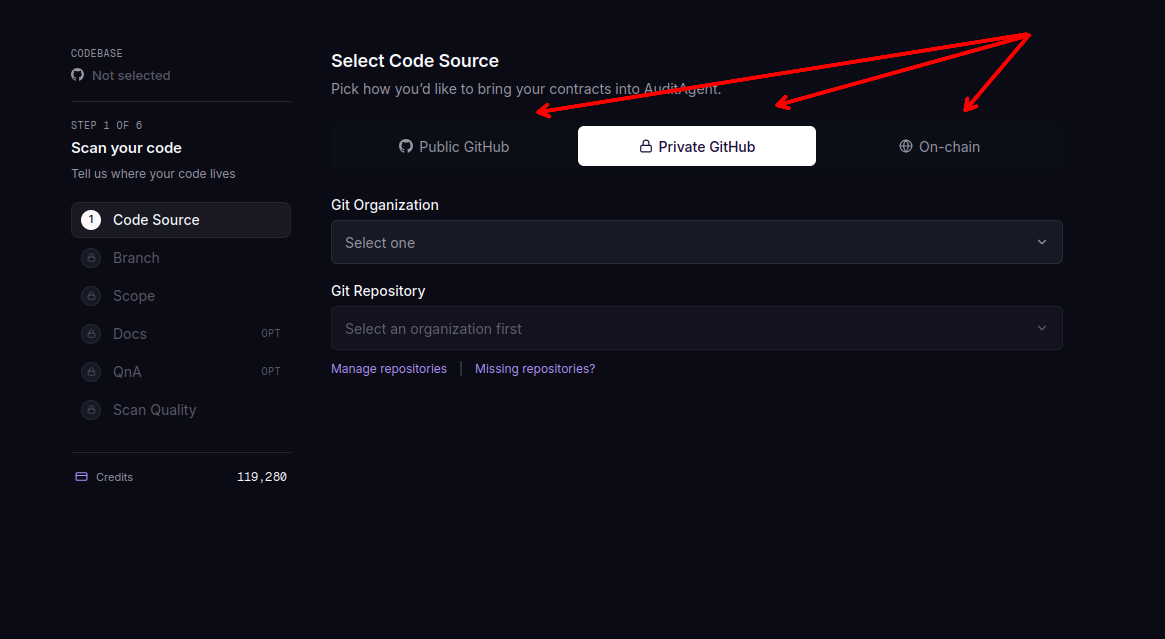
If your repository does not appear under Private GitHub, click Add Repo from GitHub to manage which repositories AuditAgent has access to.
On-chain scans
When you pick on-chain as the code source, select the network, paste the contract address, and click Load Contract Source. AuditAgent looks up the contract on the network's block explorer and pulls the verified source.
If the address is a proxy, AuditAgent follows it (including chains of proxies) to the implementation contract and scans the implementation's code. Once the source loads, you see "Proxy → scanning implementation" with the implementation's address and name. You do not have to find or paste the implementation address yourself.
Only verified Solidity contracts can be scanned. If the contract source is not verified on the network's block explorer, AuditAgent shows an error saying so and you cannot proceed with that address. Vyper contracts and Diamond (EIP-2535) proxies are not supported yet. Supported networks depend on Etherscan API coverage.
If a repository is missing
A repository only shows up in the dropdown when the AuditAgent GitHub App is installed on its owning account or organization, and that specific repository is allowed in the app installation.
To fix this, do two things.
- Ask an org owner or repo admin to install the AuditAgent GitHub App for that account or organization, or to grant access to the specific repository.
- Return to AuditAgent and refresh the repository list, or reopen the scan flow.
The installation requirement keeps you in full control of what is shared. AuditAgent cannot access any repository it has not been explicitly granted access to.