For Team Owners
How to add team members, manage existing ones, and remove access when it is no longer needed.
Adding a team member
-
Open the Profile section in your dashboard and click the Team Members tab.
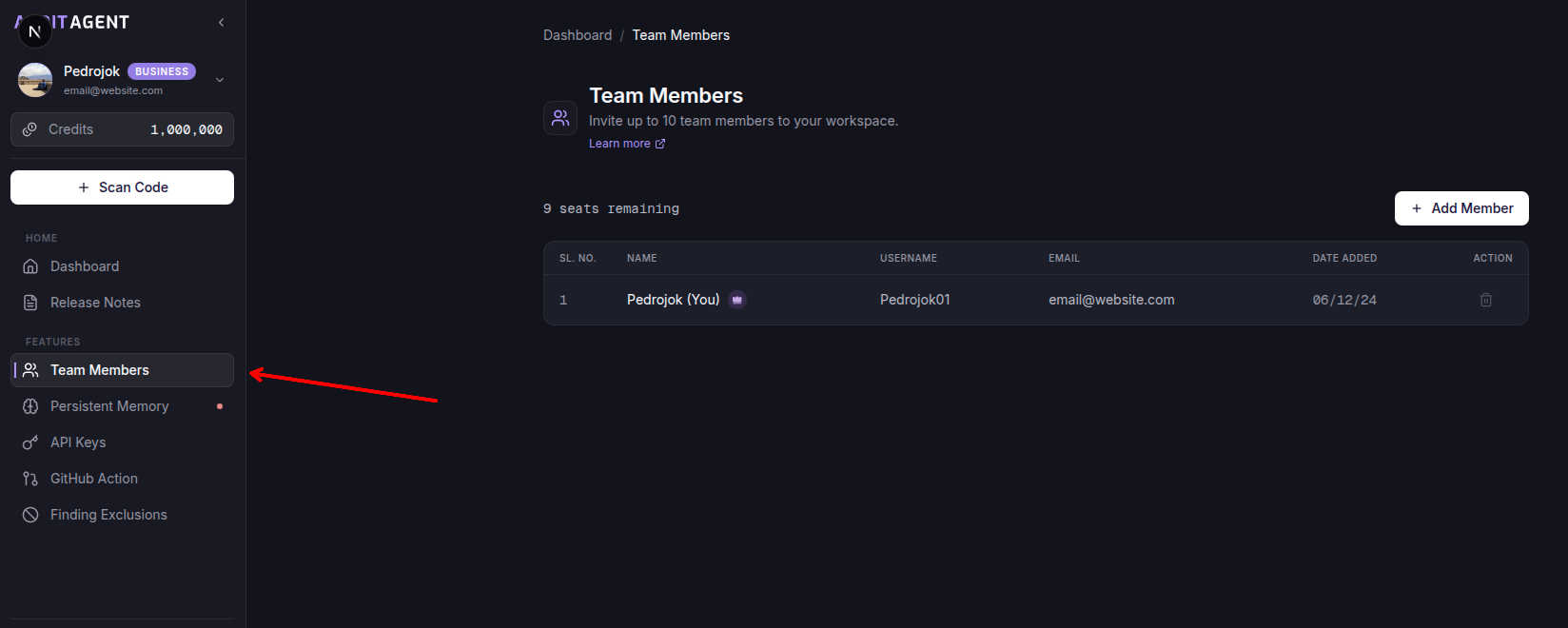
-
Click Add Member.
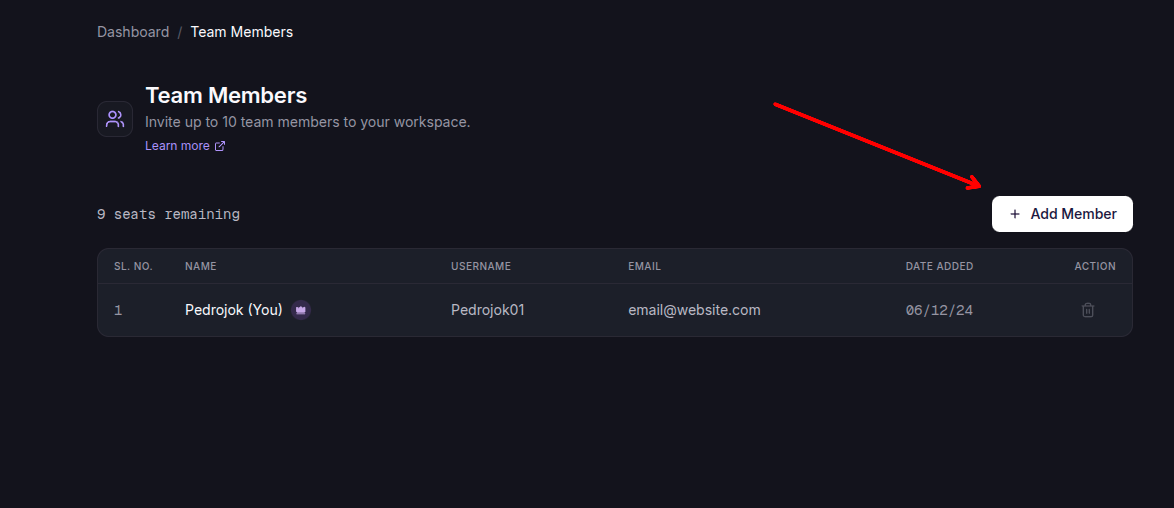
-
Enter the name, a unique username, and an email address for the team member, then click Send Invitation. An invitation with a login link goes to that email.
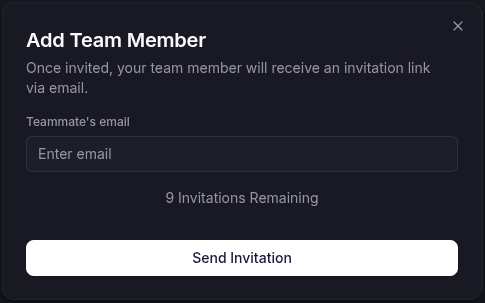
Team members get an email notification when they are added. They must accept the invitation to gain access to the dashboard.
Removing a team member
-
Find the team member in the list.
-
Click the Delete button.
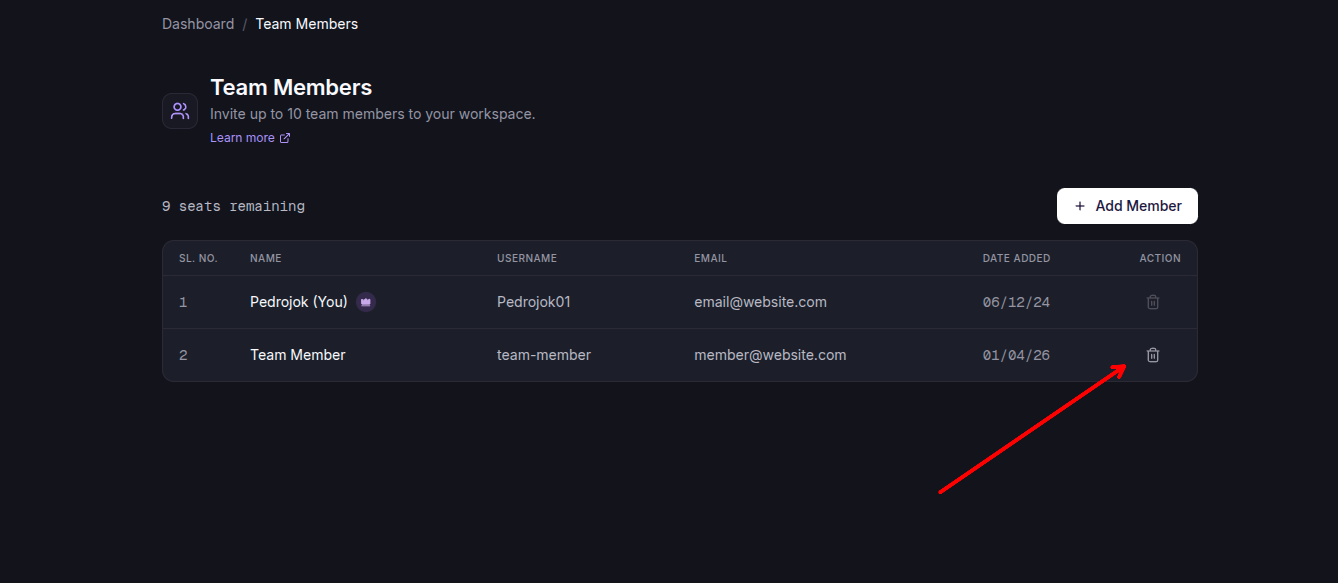
-
Confirm the removal in the popup dialog.
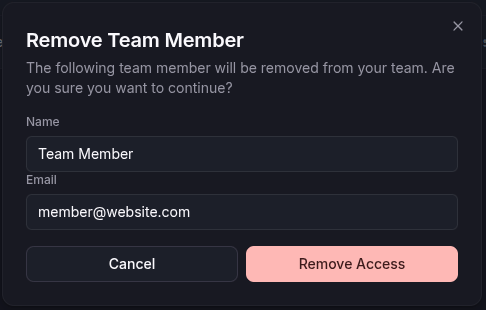
What happens to that member's work
Removing a member is safe for your team's work. Past scans they ran stay with the team, and all history, reports, and artifacts stay in your dashboard. Nothing is deleted on your side.
Any API keys that member created are deleted on removal. If those keys were wired into CI or any external integration, the integration will start failing with 401 Unauthorized until you generate a replacement key and update the secret.
What team members can do
After accepting the invitation, team members can initiate scans, view results, and access the team dashboard. They can also generate API keys for CI integration where the plan supports it. For the full team-member workflow, see For Team Members.
Billing and auto-topup
You are the only person on the team with access to Stripe and payment settings. Credits are shared across the entire team, and members scan on the shared balance.
You can enable auto-topup so members keep scanning and CI keeps running even after the shared balance hits zero. Without it, scans are blocked the moment credits run out.
Best practices
- Review your team member list periodically to confirm everyone still needs access.
- Remove team members who have left or no longer need access. Offboarding is a security control.
- Keep your team informed about new features and updates.