Reviewing Memory Updates
Each time you run a scan on a project with Persistent Memory, AuditAgent may propose updates to the knowledge base. These proposed changes go through a review process — you decide what gets applied to your long-term memory.
How Auto-Updates Work
When a scan runs on a project with active memory:
- AuditAgent compares new analysis results against existing memory
- It identifies new information, enrichments to existing entries, replacements, or items to remove
- These are packaged as pending changes for your review
- The changes are used by the current scan regardless of your review decision — review only affects whether they persist for future scans
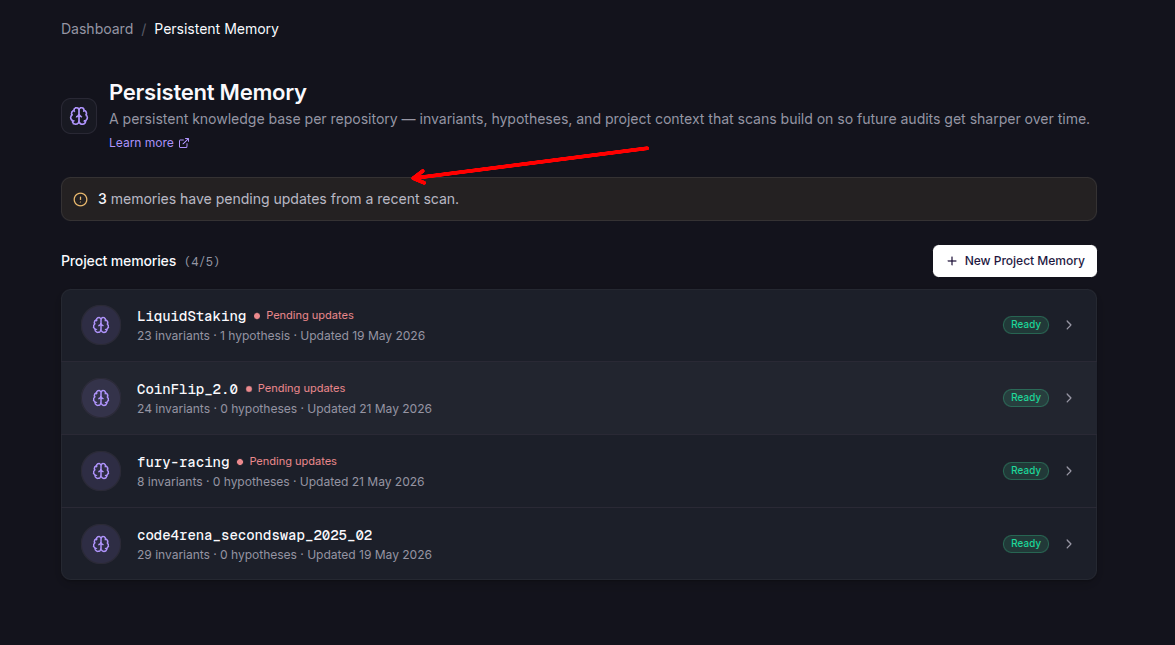
Pending Changes Indicator
When updates are available:
- A red dot appears on the brain icon in your dashboard
- A banner appears at the top of the memory viewer showing the total number of proposed changes across all categories
- Each category in the sidebar shows a badge with its pending change count
Change Types
Each proposed change is tagged with one of four actions:
| Action | Description |
|---|---|
| add | A new item that doesn't exist in your current memory |
| enrich | An existing item updated with additional detail or context |
| replace | An existing item rewritten with a significantly revised version |
| remove | An existing item proposed for removal (e.g., no longer relevant) |
The dashboard displays these as colour-coded badges so they are easy to scan in a long list of changes.
Reviewing Individual Changes
Within each memory category, pending changes appear in a dedicated Proposed Changes section:
-
Each change card shows:
- The action badge (add, enrich, replace, remove)
- The relevant contract name
- A rationale explaining why the change was proposed
- The proposed content (or a before/after comparison for replacements)
-
For each change, you can:
- Accept — Apply the change to your long-term memory
- Reject — Dismiss the change. A reason is required when rejecting, which helps AuditAgent make better proposals in the future
-
Once you've reviewed all changes in a category, click Submit to apply your decisions
Bulk Actions
For convenience, two bulk actions are available:
- Accept All — Accept every proposed change across all categories at once
- Dismiss All — Discard all proposed changes without applying any
These appear in the pending changes banner at the top of the memory viewer.
- Review promptly: Pending changes from one scan are folded into the next scan's merge, so reviewing early keeps your memory clean
- Provide rejection reasons: When you reject a change, your reason helps guide better proposals in future scans
- Check per-category: Different categories may have different relevance — accept invariant updates while rejecting hypothesis changes, or vice versa