Understanding Your Findings
The Findings tab is where you will spend most of your time. It lists every issue the agent identified, ranked by severity, with the detail you need to triage and remediate each one.
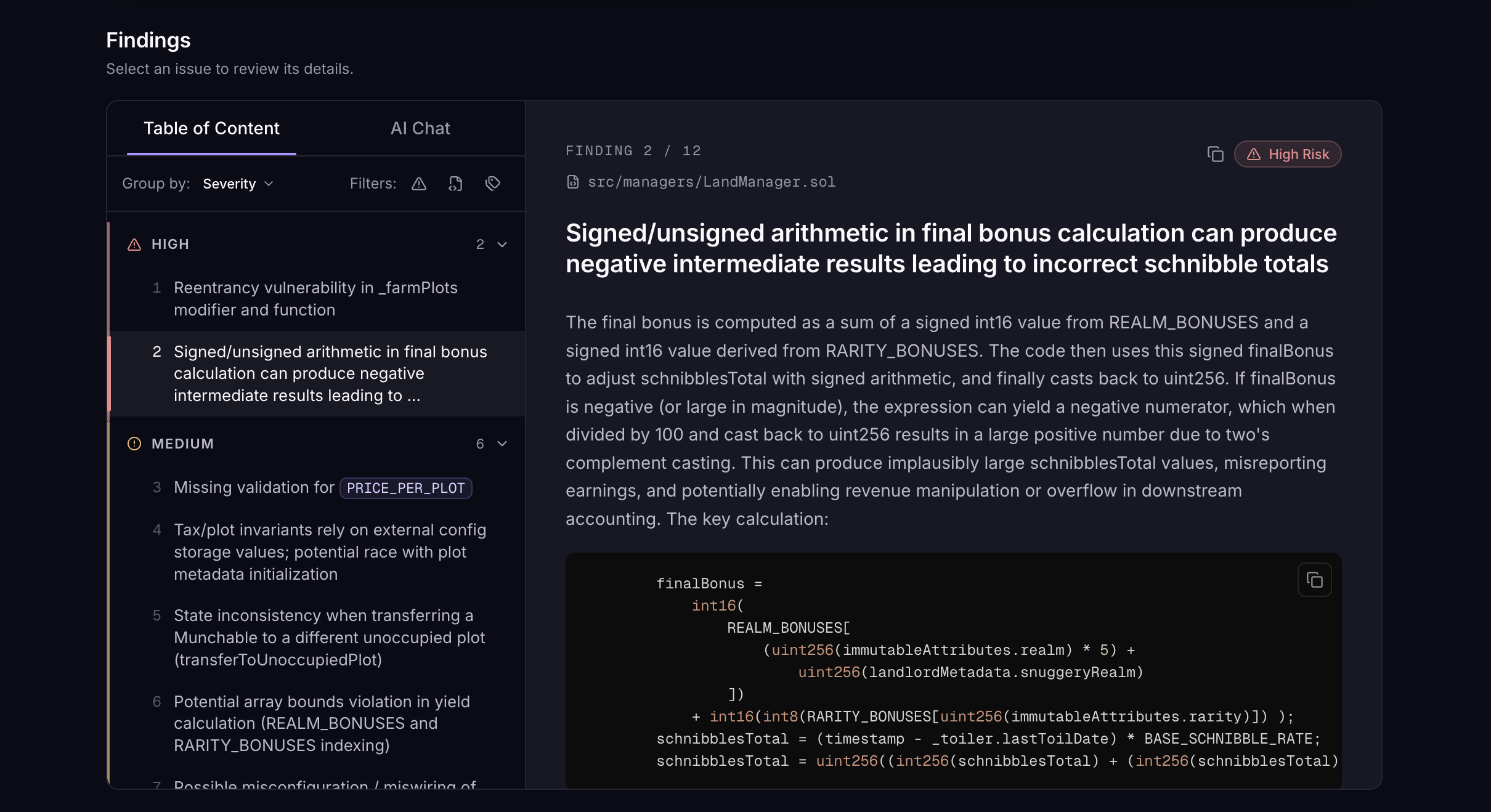
Side panel
The left side panel helps you navigate the list and filter by severity.
Table of contents
The panel lists every finding. By default findings are grouped by severity (High, Medium, Low, Info, Best Practices) but you can also group them by the files they affect.
Each entry shows a short title. Clicking an entry scrolls the main view to that finding.
Filters
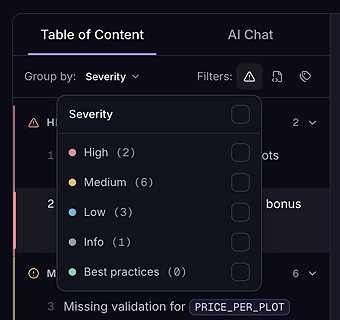
Filter the list by severity to focus on what matters first. A common workflow is to start with High only, work through it, then move down.
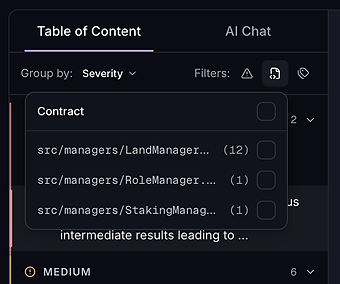
You can also filter by file when focusing on a specific file / section of your codebase.
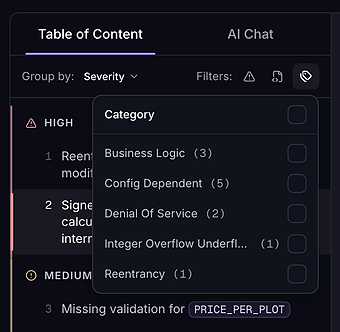
Or you can filter by category to focus on a specific type of issue.
Finding details
Click a finding from the table of contents to load its full detail in the main view. Each finding includes a title, a severity level, and a detailed description. The description explains what the issue is, how it can be exploited or what its impact could be, the conditions or flow that lead to it, and the relevant code snippet.
Findings are displayed in decreasing severity order. Scroll through or use the table of contents to navigate.
A typical review workflow
- Filter the list by severity, starting with High.
- Click a finding in the table of contents to view its details.
- Read the description and examine the code snippet.
- Analyse the impact and the root cause.
- Plan and apply the fix in your code.
- Re-scan to confirm the fix and check for regressions.
If a finding does not apply to your project, you can exclude it so similar findings stop appearing in future scans. Excluding a finding also removes it from the scan's security score, which updates straight away.